Dein Schichtplan on the web
Early, late, night or off: Dein Schichtplan lets you record shifts day by day and see them again in the calendar.
This guide shows a simple way to start your own schedule: find a day, set a shift and check the monthly overview. The pictures come from the web application using a specially created local example. They contain no customer data. Labels, colours and screen layout may differ depending on settings and version. The illustrative screenshots retain their German labels.
Your first entry in four steps
1. Open the day list and find the date
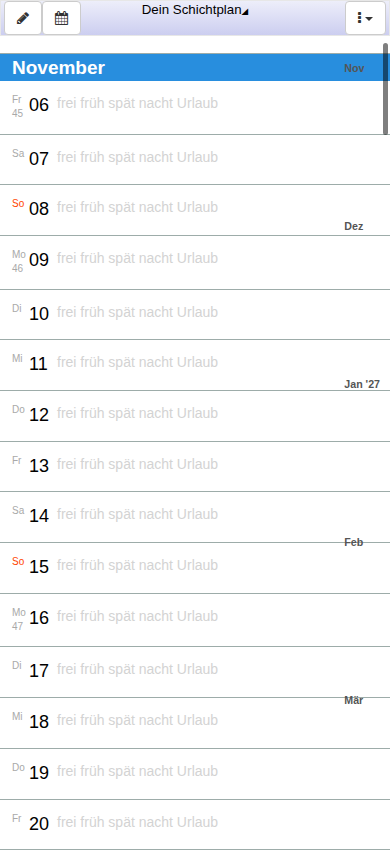
Open the schedule using the link above. The day list shows the weekday and date on the left, with the month above them. The available shift names appear alongside. The defaults are off (“frei”), early (“früh”), late (“spät”), night (“nacht”) and holiday (“Urlaub”). Days without an entry have no selection highlighted in colour.
Check the month and day first. The list contains several months, so the same day numbers may appear more than once. Scroll to the date you want; the month names help you find your way.
2. Tap the day until the correct shift is highlighted
A short click or tap on the day row advances to the next shift. You do not simply select the word you tap: what matters is the shift highlighted afterwards. On the empty example day, the first tap shows off (“frei”) and the second early (“früh”). Repeated taps cycle through the available entries.
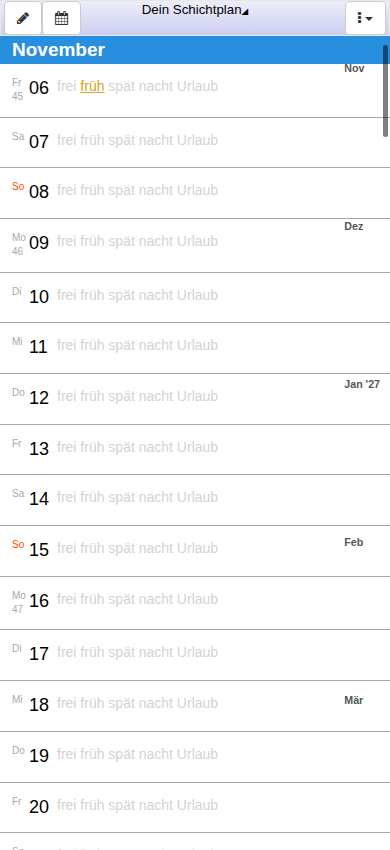
In this example we set 6 November to early (“früh”). Check the highlight after every tap. This helps avoid accidentally going one shift too far. The actual sequence depends on the shifts you have configured.
3. Check your entry after reopening
The local selection is saved when you change it; no additional Save button is needed for this simple day change. Then reload the page and check the same day. In the example, early (“früh”) remains selected. This is a practical check that local storage works in your browser.
Use the same browser and browser profile. Clearing website data or ending a private session may lose local data. Therefore, do not start by clearing browser data if a schedule is not displayed. First check that you really opened the same website and profile.
4. Check the month in calendar view
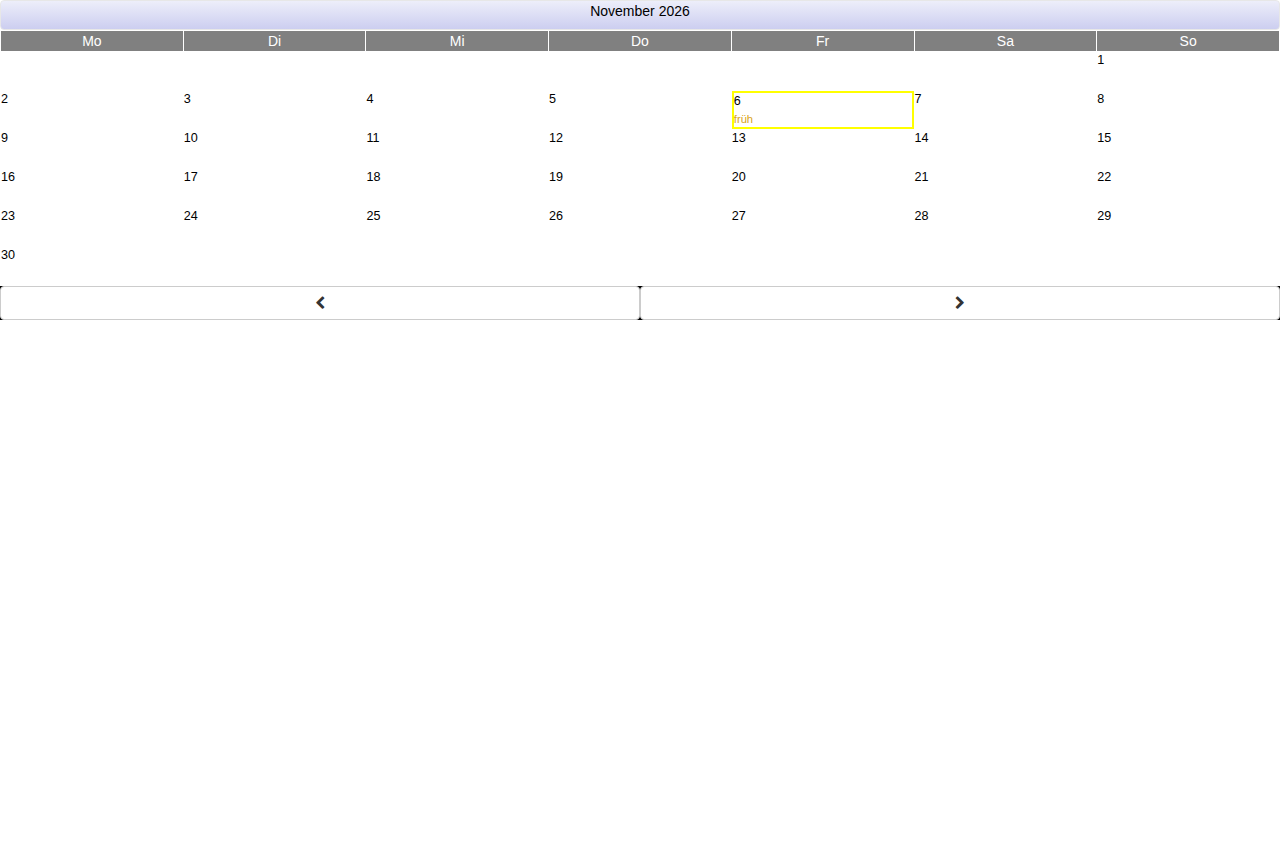
Use the calendar icon at the top of the day list to switch to the monthly overview. Days are arranged by weekday there. Find the day you edited and compare its entry: in the example, 6 November shows early (“früh”). The arrows below the month grid switch to the previous or next month.
The monthly overview helps you see the whole picture; the day list is useful for entering shifts step by step. Use “Go to your schedule” to return to the day list. Do not rely on colour alone: check the shift name and date too.
Entering a week sensibly
Copy your actual work schedule day by day. For example, start with Monday and check the date first, then the highlighted shift for each day. A possible practice example is: early on Monday and Tuesday, late on Wednesday and Thursday, Friday off. This is only an example to try out, not a predefined or automatically generated work pattern.
Then switch to the monthly overview. Do the entries match your original schedule? If a day is missing or a shift is one day early, correct that specific day in the day list. The schedule issued by your employer remains authoritative; your own entries do not replace official approval.
Frequently asked questions
Why is off (“frei”) highlighted first when I tap late (“spät”)?
The short click applies to the whole day row and advances to the next shift. Tap again until the name you want is highlighted. The word you tap is not a direct selection button.
Can I change an incorrect entry?
Yes. Find the same day in the day list and keep making short clicks until the correct shift is highlighted. Then check the monthly overview.
Why do my shift names look different?
The application has a Shifts section accessible through the menu. Names and appearance may differ from the defaults in the example. Always use the names from your own schedule when copying it; this guide does not assume any particular working hours.
Will my schedule automatically appear on another device?
Making local entries alone does not demonstrate transfer to another device. A different browser has its own local storage. This guide deliberately covers getting started locally, not sign-in, sharing or synchronisation.
The application is stuck at “start …”. What can I do?
Check whether JavaScript is allowed for this website and whether the page has fully loaded. Then try reloading it. This guide remains readable independently of the app starting. Do not clear local website data without thinking, as your schedule may be stored there.
Do I have to enable analytics or advertising for this guide?
No. This guide loads neither analytics nor advertising scripts and needs no consent for such services. The application's settings and privacy information are unaffected.